Neon Light Effect Photoshop Tutorial
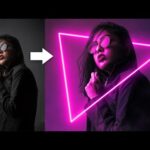
Illuminate Your Photos: A Step-by-Step Guide to Creating Neon Light Effects in Photoshop
If you’re looking to add a vibrant and modern touch to your photography, consider the neon light effect. This tutorial by Spoon Graphics will guide you through the process of transforming a standard photo into a captivating piece of art with a cyberpunk vibe. By utilizing Photoshop’s powerful tools and techniques, you’ll learn how to incorporate neon lights and create a stunning visual experience.
What You’ll Learn
In this tutorial, you will:
- Draw a custom shape in Photoshop.
- Apply a vibrant glow using Photoshop’s Layer Style options.
- Add colorful ambient lighting to your original photo.
- Incorporate smoke and particle effects for a futuristic feel.
Step 1: Create Your Neon Shape
Start by launching Adobe Photoshop and opening your chosen portrait photo. To create your neon light effect, you’ll first need to draw a custom shape or text that you want to illuminate.
Pro Tip: Use the Pen Tool for more intricate designs or the Text Tool for vibrant neon text.
Step 2: Apply Layer Styles
Once your shape is created, it’s time to add that glowing effect. Right-click on the layer of your shape and select Blending Options. Here, you will utilize the Outer Glow feature to achieve the neon look.
- Adjust the Size and Spread settings to create a soft, radiant glow.
- Choose bright, eye-catching colors that resonate with the neon aesthetic.
Step 3: Enhance Your Background
To make your neon effect truly pop, you’ll want to create a colorful ambience that simulates the light illuminating your photo. Duplicate your original photo layer and apply a gradient overlay that complements your neon colors.
Pro Tip: Experiment with different blending modes like Screen or Overlay to see which gives the best result.
Step 4: Add Smoke and Particle Effects
The final touch to your neon artwork is to introduce some atmospheric elements. By using smoke brushes, you can create a sense of depth and intrigue.
Download smoke brushes or create your own using the following steps:
- Select the Brush Tool and choose a soft round brush.
- Adjust your brush settings to create a textured effect that mimics smoke.
Overlay the smoke layers on your image and adjust their opacity to blend seamlessly with your neon lights.
Key Takeaways
- Utilize the Pen Tool or Text Tool to create custom shapes for your neon effect.
- Apply Layer Styles such as Outer Glow for vibrant illumination.
- Enhance the background with a gradient overlay to reflect the neon light.
- Add smoke and particle effects for a dynamic and immersive atmosphere.
Next Steps
Now that you’ve mastered the neon light effect, consider exploring more advanced tutorials on creating vaporwave aesthetics or other unique photo effects. Check out the Vaporwave Neon Effect Photoshop Tutorial for further inspiration. Don’t forget to subscribe to Spoon Graphics for a plethora of design resources and tips!
Leave a Reply